Migrate from Google Workspace to MailSprout
Your old emails come with you. This guide walks you through copying every message from your Google Workspace account to MailSprout, then flipping your domain's MX records so new mail flows to MailSprout. You'll use imapsync's free web app to do the copy. Fill out a form, click Start, and wait. About 30 minutes per account, most of which is sit-and-wait.
Create the destination account in MailSprout
In your MailSprout dashboard, open the relevant domain and click Add account. Type the same name (the bit before the @) you have in Workspace. If your old address was you@yourdomain.com, type you.
MailSprout will generate a strong password and show it to you once. Copy it into a password manager or sticky note; you'll need it in Step 3.
Generate a Google App Password (if 2FA is on)
If your Google account has 2FA enabled (very likely), imapsync can't log in with your regular password. You'll generate a one-off App Password that lets external tools read your mail.
- Go to myaccount.google.com/apppasswords (opens in a new tab) while signed in to the Workspace account.
- If prompted, sign in / verify 2FA.
- Enter a name like
MailSprout migrationand click Create. - Google shows a 16-character password. Copy it now; it won't show again.
Run the migration with imapsync
Go to the imapsync free web app: imapsync.lamiral.info/X/ (opens in a new tab). Fill in your credentials and click Start.
Fill in the form with two sets of credentials:
Source (Google Workspace)
- Host:
imap.gmail.com - Port:
993(SSL) - User: your full Google email
- Password: the App Password from Step 2
Destination (MailSprout)
- Host:
fusion.mxrouting.net - Port:
993(SSL) - User: the same email address
- Password: the MailSprout password from Step 1
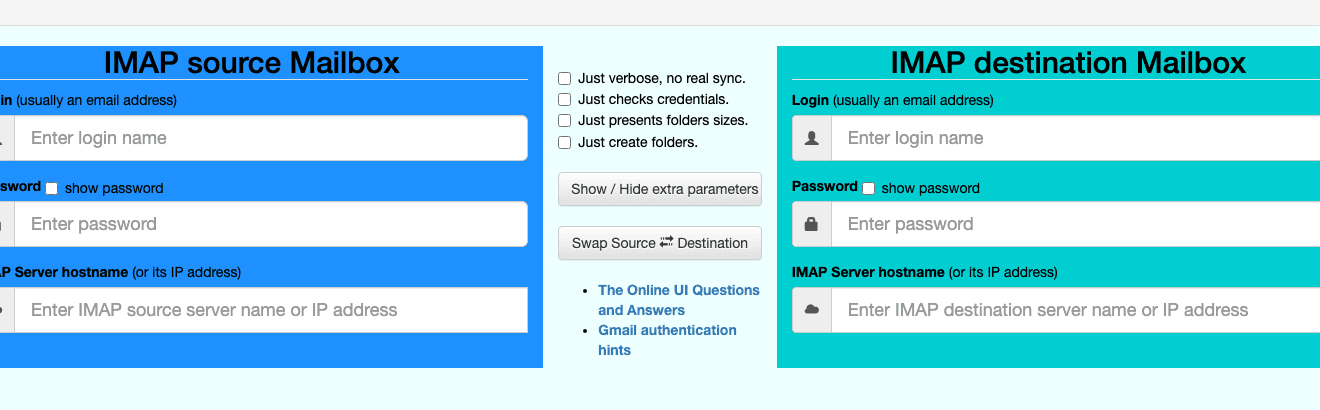
Click Start. imapsync will copy every folder, every message, every flag (read/unread, starred, labels-as-folders). For an average inbox of 10k messages, expect ~30 minutes. You can close the browser tab; the job runs server-side and you'll get an email when it finishes.
Verify the migration looks right
Set up your MailSprout account on a device (use the QR code on the account detail page; quickest is to scan with iPhone Camera). Open Apple Mail / Outlook / Gmail app, browse your folders, and confirm your old messages are there.
Do this before changing MX records. If anything looks wrong, fix it now. There's no rush yet because Google is still receiving your live mail.
Cut over the MX records
Now we change your domain's MX records to point at MailSprout instead of Google. From this moment forward, new mail goes to MailSprout, not Google.
Open your registrar's DNS panel and follow the registrar-specific guide:
When you're done, your DNS panel should have MailSprout's MX records (pointing at fusion.mxrouting.net priority 10 and fusion-relay.mxrouting.net priority 20), the MailSprout SPF, DKIM, and DMARC records, plus no Google MX records (those used to point at aspmx.l.google.com and similar).
Run imapsync one more time
About an hour after the MX change, go back to imapsync and re-run the sync with the same credentials. This time it's near-instant. imapsync skips messages that already exist on the destination and only copies what's new. This sweeps up any mail that landed in Google during the cutover.
Cancel Google Workspace (when you're sure)
Once mail is flowing to MailSprout and you've had a few days to verify nothing's missing, you can cancel your Workspace subscription. We recommend waiting at least a week before canceling. That way you can run imapsync one more time if a stray message turns up in Google after the cutover.
In Google Workspace admin: Billing → Subscriptions → cancel. Google will give you a grace period before fully terminating the account.
Migrating multiple users at once?
The same imapsync flow works for an entire team. The fastest approach: create all the MailSprout accounts first (each takes 30 seconds), then run imapsync once per user with its scripted batch mode. imapsync's hosted UI has a CSV-import option that handles this for you. See imapsync.lamiral.info/X/ (opens in a new tab) for details.
If you have more than 10 users or your team isn't comfortable with the tool, email support@mailsprout.io. We can offer concierge migration as a one-time service. We've done it before; it's straightforward.
Troubleshooting
imapsync says authentication failed for the Gmail account.
My folder structure looks different in MailSprout.
[Gmail]/All Mail show up in a folder called All Mail. [Gmail]/Sent Mail becomes Sent. Apple Mail and most clients auto-map these correctly.The sync is taking forever / appears stuck.
Will my Calendar / Drive / Docs come with me?
I changed MX but new mail isn't arriving at MailSprout yet.
fusion.mxrouting.net at priority 10 (and fusion-relay.mxrouting.netat priority 20), you're good. If it still shows Google's servers, the registrar hasn't propagated the change yet.Set up your domain first
The #1 registrar by market share. Most small businesses start here.
Popular among indie founders and developers.
Power-user favorite. DNS panel is the cleanest in the business.
Indie-hacker darling. Fast, cheap, fair pricing.
Includes former Google Domains customers who got migrated here.
Long-time favorite of founders and writers.
Stuck on a step?
Email support@mailsprout.io with the step number and a screenshot. We reply same day.